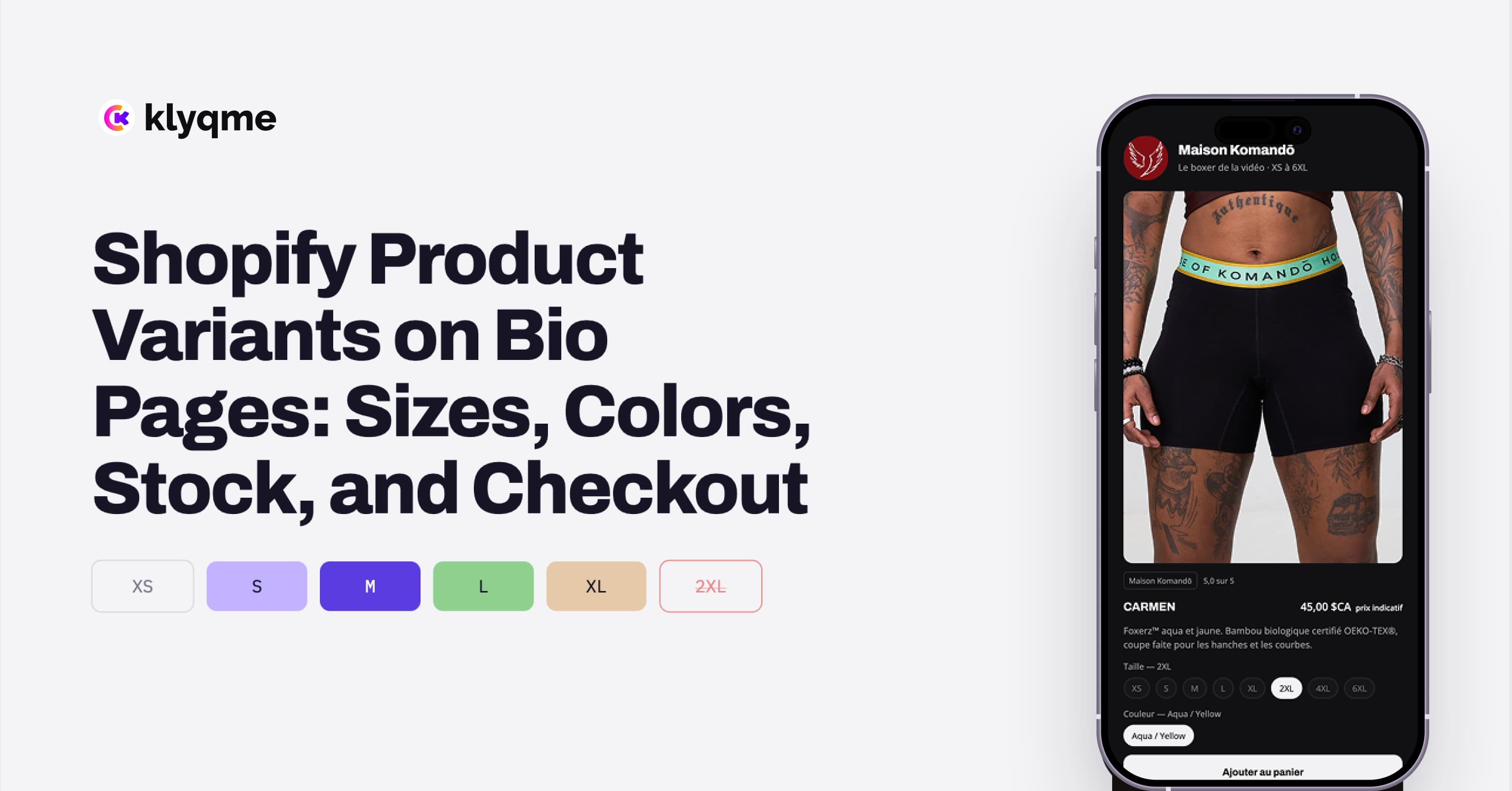
A product card is not ready to sell merely because it shows a photo and a price. If the Shopify product comes in several sizes, colors, materials, or styles, the bio page must preserve those choices and send the selected combination to Shopify.
Otherwise, the shopper repeats the work after leaving the page or reaches checkout with the wrong item. Both outcomes add friction at the point of highest purchase intent.
A reliable Shopify product block should do four things:
- Read option names and values from Shopify.
- Resolve the selected combination to a real Shopify variant.
- Reflect that variant's current price and availability.
- Open Shopify with the exact variant selected.
This guide explains the model, the interface, and the tests needed to make that flow dependable on mobile.
Understand the difference between an option and a variant
Shopify uses options to describe choices such as Size or Color. A variant is a purchasable combination of those choices.
Suppose a shirt has:
- Size: Small, Medium, Large
- Color: Black, Natural
That catalog can contain six variants. Black and Medium is one variant. Natural and Large is another. Each may have its own identifier, image, price, SKU, inventory, and availability.
The bio page should never construct a variant by joining labels and assuming it exists. It must select a variant returned by Shopify. Some combinations may be unavailable or absent entirely.
Shopify remains the source of truth for:
- option labels;
- option values;
- valid combinations;
- variant identifiers;
- prices;
- images;
- inventory availability.
That prevents the page from presenting an old size list after the merchant changes the product catalog.
Preserve the labels customers expect
Do not replace descriptive labels with generic controls. If Shopify calls an option Size, the page should display Size. If the store uses Waist, Finish, Scent, or Pack Size, preserve that wording.
This is especially important for products with more than one option. A row of values such as M, Black, and Regular is difficult to understand without the labels Size, Color, and Fit.
Labels should also follow the language and terminology chosen by the merchant in Shopify. The bio page is a sales surface, not a second catalog that silently renames products.
Use the right control for the layout
Product choices can be presented as chips or dropdowns. The best control depends on space and the number of values.
Chips for a focused product sheet
Chips make all common values visible and reduce taps. They work well when the page presents one product in detail and the option list is short.
Examples:
- XS, S, M, L, XL
- Black, White, Red
- 250 ml, 500 ml
Dropdowns for denser layouts
A dropdown is more appropriate when there are many values or when the product appears inside a compact tab or shop surface. It saves vertical space but hides choices until tapped.
No selector for a single variant
If the product has only one purchasable variant, do not display a control with one meaningless value. Keep the action direct.
The control may change with the layout, but the underlying data and checkout behavior must remain identical.
Resolve combinations as the shopper makes choices
When a shopper selects a value, the interface should immediately recalculate which combinations remain valid.
For example, if Rust is sold only in Medium and Large:
- Selecting Rust should disable Small.
- Selecting Medium should resolve to the Rust and Medium variant.
- The price, image, and availability should update if that variant differs.
- The purchase action should carry the resolved variant identifier.
Unavailable values should be visibly disabled rather than removed without explanation. A stable list helps the customer understand that the option exists but cannot currently be purchased.
If a selected combination becomes invalid after new product data arrives, the page should require a valid choice rather than retaining a stale variant identifier.
Show stock at the variant level
Displaying "In stock" for the entire product is misleading when only one size remains. Availability belongs to the selected variant.
Use clear states:
- Available: the selected combination can be purchased.
- Unavailable: the combination exists but cannot currently be purchased.
- Selection required: one or more required options have not been chosen.
- Product unavailable: Shopify no longer returns a purchasable variant.
Disable the purchase button when the selection is incomplete or unavailable. Do not wait for Shopify checkout to reveal an avoidable error.
Inventory can change between page load and checkout. Shopify must make the final decision. The bio page should provide an accurate preview, while Shopify validates the order at checkout.
Send the exact variant to Shopify checkout
Shopify cart permalinks can add a specific variant and quantity to a cart and can direct the visitor toward checkout.[1] The variant identifier, not the product title or option text, is the reliable handoff.
The expected flow is:
- The shopper chooses every required option.
- The page resolves the combination to a Shopify variant ID.
- The shopper taps the purchase button.
- Shopify opens with that variant and quantity.
- Shopify handles shipping, tax, payment, discounts, and order confirmation.
Klyqme does not replace Shopify checkout for Shopify products. It provides the mobile product surface and sends the chosen item into the merchant's Shopify buying flow.
Read how to add Shopify products to an Instagram bio for the complete setup.
Keep price and image synchronized
Variant selection can affect more than stock. Shopify merchants may assign a different price or image to a particular variant.
When that data exists, update the visible product state after selection. A shopper who chooses a red product should not continue seeing a black image if Shopify provides the red one. A higher-priced bundle should not retain the base price.
Use a neutral product image only when Shopify does not provide a variant-specific image. Do not invent a price, promotional badge, or stock state in the bio-page configuration.
Design for thumbs, not a desktop cursor
A social-commerce page is commonly opened on a phone. Variant controls therefore need:
- a touch target large enough to select reliably;
- visible selected, available, disabled, and focus states;
- labels that do not depend on color alone;
- text that wraps instead of overflowing;
- enough contrast in light and dark themes;
- a purchase button that remains legible at narrow widths.
Color swatches should include a text label or accessible name. The word «Natural» communicates more than a beige circle and remains usable for people who cannot distinguish every color.
Avoid horizontal scrolling for a handful of sizes. If the store has dozens of values, use a dropdown or wrapping grid suited to the block layout.
Choose the product layout around the buying decision
Different placements support different levels of detail:
- Hero or sheet: one featured product with visible options and a prominent action.
- Card or banner: a product highlight with essential information.
- Inline row: a compact secondary product with image, title, price, and action.
- Collection grid or list: several products for discovery.
The featured product should expose the choices needed to buy. Compact collection items can lead to a more detailed product surface or Shopify when the full option interface does not fit.
For broader page planning, see the Shopify link-in-bio comparison and the guide to selling products from a bio link.
Test every meaningful branch
Testing one default size is not enough. Use a matrix that covers the catalog logic.
For a two-option product, test:
- the first available combination;
- a different size at the same color;
- a different color at the same size;
- an unavailable combination;
- a variant with a different image;
- a variant with a different price, if one exists;
- the checkout destination for each tested choice.
Also test:
- a product with one variant;
- a product with one option;
- a product with several options;
- a product that becomes unavailable;
- a long localized option label;
- slow or failed Shopify product retrieval.
At checkout, verify the Shopify cart contains the expected product, variant, quantity, and price. Stop before payment when testing a production store.
Common implementation failures
Hardcoding size and color values
The page becomes stale as soon as the merchant edits Shopify.
Sending the product instead of the variant
The shopper may need to choose again or may arrive with the wrong item.
Hiding option labels
Values become ambiguous, especially when several option groups are present.
Treating product stock as variant stock
One available size can make every unavailable size look purchasable.
Leaving the button active for an invalid choice
The error is postponed to Shopify and trust is lost.
Cropping the product image to fit a fixed height
Product photography often contains useful detail. Unless the layout explicitly calls for a crop, preserve the image ratio with full width and automatic height.
Launch checklist
- Product data comes from the connected Shopify store.
- Every option displays its Shopify label.
- Only real Shopify combinations can be selected.
- Price, image, and stock react to the selected variant.
- Unavailable values are visibly disabled.
- The purchase button is disabled until the selection is valid.
- The checkout URL contains the resolved variant.
- Mobile touch targets and text wrapping have been tested.
- Shopify confirms the expected cart before payment.
When these rules hold, a bio page does more than advertise a product. It preserves the buying decision all the way to Shopify.
Sources
Frequently asked questions
No. The Shopify product block should read option labels, values, combinations, and availability from the connected Shopify catalog.
Yes. The displayed price should update when Shopify returns a different price for the selected variant.
The page should mark the value or combination unavailable and prevent purchase. Shopify still performs the final inventory validation at checkout.
Use chips for short, visible choices in a focused product layout. Use dropdowns when space is limited or the value list is long. Both controls must resolve to the same Shopify variant.
Payment for a Shopify product happens through the merchant's Shopify checkout. Klyqme sends the selected variant into that flow.